This page provides information and guidance to help you prepare for developing a course for Global Campus. We recommend starting with our welcome video below.
Teaching at Global Campus Video Transcript (PDF)
Whether you are a developer or instructor for Global Campus, you have access to support from our Instructional Designers (ID). You can also work with our Media Designers to create multimedia content for your course.
For developers, once your Instructional Designer is assigned, they will guide you through the course development process. Using our Standards for Online Courses, your ID will help ensure your course aligns with institutional expectations, supports your course goals, and meets accessibility requirements.
Explore the expandable sections below to learn more about course design types, the design process, and more!
Collaboration Is Key
As part of the course development process, faculty collaborate with their assigned Instructional Designer throughout the design phase. Regular check-ins, timely feedback, and shared decision-making are essential to creating a successful online course.
Roles & Responsibilities
Your Instructional Designer will review in more depth during your initial meeting.
Faculty (Content Expert)
- Develop course content, assessments, and instructional materials
- Ensure academic rigor and disciplinary relevance
- Complete syllabus, schedule, and lesson outlines using provided templates
- Communicate textbook, media, and proctoring needs
Instructional Designer (Design Partner)
- Recommend evidence-based teaching strategies
- Support alignment of outcomes, assessments, and activities
- Provide training on instructional tools and accessibility standards
- Manage project timelines and course structure in the LMS
Shared Responsibilities
- Collaborate on course engagement and interaction strategies
- Implement Universal Design for Learning (UDL) principles
- Attend, at minimum, bi-monthly meetings and meet project milestones
- Build course in LMS and ensure it meets Global Campus standards
Quick Start Guide: Digital Accessibility Must-Dos
Creating accessible course content doesn’t have to be overwhelming. These essential actions will help you quickly improve the accessibility of your course materials in Canvas and align with WSU’s Electronic and Information Policy (UPPM 10.45) as well as applicable federal and state digital accessibility regulations and policies. Even small changes can make a big difference for students.
Accessibility is a shared responsibility. As a faculty member or course developer for Global Campus, you are responsible for ensuring that the following items are implemented in your course space, as applicable. Use this guide to ensure your course space, and the content it contains, removes barriers and creates an accessible learning experience for all.
Develop a Foundation in Digital Accessibility
Why it matters: Understanding digital accessibility concepts makes it easier to design inclusive courses and meet compliance requirements.
What to do:
- Review the WSU Digital Accessibility Website
- Complete the Annual Digital Accessibility Assessment
- Learn Digital Accessibility Core Concepts
- Explore WSU Learning Innovations: Tips for Creating Accessible Course Materials
Apply Core Accessibility Practices to Written Course Materials
Why it matters: Accessibility principles apply to all course materials, including Canvas pages, Word documents, PowerPoints, PDFs, and other content. Using improperly sequenced headings, unformatted lists, and/or inaccessible table formatting can lead to student confusion and a disruption in how assistive technology processes and navigates course materials for students.
Ensure the Following:
To implement these concepts effectively, learn how to use the formatting tools and rich text editors available in applications like Canvas, Microsoft Word, PowerPoint, and Adobe Acrobat.
- Use Headings
- Section titles use proper heading styles or HTML tags, not manually formatted text.
- Only one heading level 1 < H1 > per digital document (Often used as the document or HTML page title)
- Canvas pages start with Heading 2 < H2 > (Canvas page titles are Heading 1)
- Headings are applied hierarchically and sequentially
- Headings follow a logical order (e.g, < H2 > → < H3 > → < H4 > )
- Heading levels are not skipped (e.g., Skipping a Heading 3 < H3 > by going directly from a Heading 2 < H2 > to a Heading 4 < H4 >)
- Number or Bullet Your Lists
- Ordered lists use sequential numbering
- Unordered lists use bulleting
- Lists are created using an application’s formatting tools and are not manually entered using dashes or numbers
- No extra blank lines or spaces appear between list items
- Format Tables Accessibly
- Tables are used to organize and present data and information, not for page layout or aesthetics
- Tables include header rows/columns
- Tables use table titles/captions to describe table contents
- Tables do not use merged cells
Use Accessible Text Colors & Descriptive Link Text
Why it matters: Adaptive technology does not recognize color. Deviating from black text on a white background should be avoided unless absolutely necessary. If using font colors is deemed necessary, please consult with Global Campus staff.
Additionally, full URL links should be avoided. Instead, link text should be descriptive to provide students with context (and to make those links more easily read by assistive technology).
Ensure the Following:
- Color Contrast
- High-contrast is used between text and background for readability (i.e., black text on white or white text on black)
- Using other color combinations should be minimal. If using a color combination other than black text on white is necessary, use a contrast checker, like that provided by WebAIM’s Color Contrast Checker, to check your text’s contrast to check your text’s contrast to check your text’s contrast
- High-contrast is used between text and background for readability (i.e., black text on white or white text on black)
- General Formatting
- Bold text is used for emphasis
- Underlined text is not used except for hyperlinks, which is an automatic part of link formatting
- Colored text and highlighting of text are avoided
- Link text describes the destination (e.g., Learning Innovations website)
- Make link text specific, unique, and concise
- Avoid using link text such as “more information,” “here,” or “click here”
- Avoid providing the full website URL as the link
Use Canvas Pages for Course Content
Why it matters: PDFs are often not fully accessible and can require significant time to make accessible. Online HTML pages (including Canvas pages) are the more accessible and responsive option for creating course content. HTML pages provide consistency in course formatting and reduce issues with reading order in the event students make use of a screen reader.
Ensure the Following:
- Activity, assignment, and discussion prompts appear in Canvas pages (not PDFs)
- Readings use WSU Library online versions whenever possible
- Conduct a WSU Library or web search to see if the material is available online in a web-based HTML format
- If a PDF must be used, it is accessibly formatted (e.g., images have alternative text descriptions, PDF is tagged, and text is selectable and not scanned as an image)
- Web-based HTML readings, documents, and PDFs were checked for functionality and accessibility before adding to course space.
Use Captions and Alternative Text Descriptions to Make Multimedia Content Accessible
Why it matters: When it comes to multimedia content, captions make videos accessible and improve comprehension for all students, while alternative text (alt text) descriptions provide concise descriptions of images that are conveying essential and relevant information about the content being presented. Image alt text descriptions are essential to those using screen readers to access course content or when images do not load on a web page.
Ensure the Following:
- All Panopto recordings are captioned
- Closed captioning is enabled during live Zoom sessions, and captions are included in the recording
- All videos (e.g., Publisher website videos, YouTube videos, library streaming videos, etc.) are captioned
- All audio only content (e.g., Podcasts) have transcripts
- Alt text is added for all meaningful images. If an image is for aesthetic purposes, or is not adding to or supplementing, the information being provided, it should be marked as decorative.
Be Consistent in Developing Your Course Space
Why it matters: Consistency ensures that students can easily and effectively navigate your course space to complete their assignments and activities.
Ensure the Following:
- Formatting and structure are consistent across Canvas pages and prompts
- Naming conventions and module layouts are consistent throughout the course space
- Global Campus Canvas templates are used for the course schedule, syllabus, and the Module To-Do/Overview
- Outdated or duplicate materials (e.g., PDF readings, Panopto video lectures, Canvas HTML module pages) are removed from the Canvas course
View Your Course Like a Student
Why it matters: Viewing your course as a student ensures the experience is accurate and accessible. It helps you confirm that navigation, headings, and links work correctly, content displays as intended, and assistive technologies can interpret the structure—reducing barriers before students encounter them.
Ensure the Following:
- Navigation displays clearly in Student View
- All links work and point to correct destinations
- Headings and content display correctly for readability and accessibility
- Assignments, discussions, and instructions appear as intended
- Hidden or unpublished items are not visible to students
Develop an Implementation Plan
Creating a plan helps you integrate accessibility into your course and help ensure that improvements happen without delay. By planning ahead and breaking the process into more manageable steps, you make accessibility part of your design process.
Examples of Practical Approaches:
- Focus on One Core Concept at a Time: Start by ensuring all images in your Canvas course have alternative text descriptions
- Set Priorities for New vs. Existing Content: Commit to making all new content accessible, and schedule updates for older materials
- Target High-Impact Areas First: Ensure all lecture videos you create have accurate captions before the semester begins
Final Note
This guide is not comprehensive, but it highlights the most essential elements for ensuring accessibility in your course space. For more details on digital accessibility, please visit WSU’s Digital Accessibility Core Concepts.
For questions or support, contact Wendy Steele, Assistant Director of Digital Accessibility and Student Success, at wsteele@wsu.edu . If you have questions about student accommodations, please contact WSU Student Accommodations & Disability Resources.
Graphic Preview
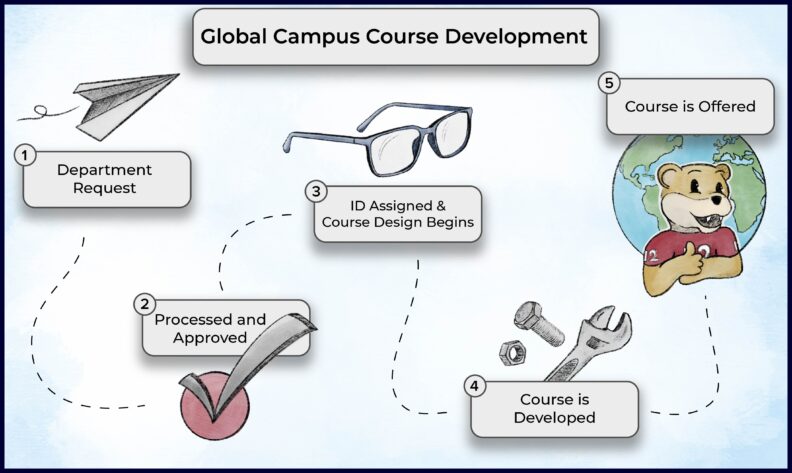
The graphic below offers a high-level view of the course design process. This section focuses on your collaboration with your assigned Instructional Designer (ID), their role, and the steps involved in designing your course.
Working with Your Instructional Designer
Once your course is requested and approved, you’ll be paired with an Instructional Designer. Together, you’ll use the Global Campus Course Milestones to guide the design process, from refining learning outcomes to building the course in the LMS.
Your ID acts as a partner and a second set of eyes, helping ensure that your course is aligned, cogent, and learner-centered.
Time Commitment
Designing an online course typically takes 4–6 months. Whether you’re creating a new course or redesigning an existing one, the process includes:
- Course Mapping
- Review and refine Student Learning Outcomes
- Map modules and learning activities
- Identify additional resources to support learning
- Content Development
- Faculty leads the creation of lessons, assessments, and discussion prompts
- Instructional Designers support with structure, clarity, and alignment
- Course Build
- Collaboratively build the course in the LMS
- Focus on how students will navigate and experience the course
- Pre-Launch Review
- Final quality check by the Global Campus team
- Final review by you and your ID to ensure readiness
This is a critical step in the course design process. Timely responses ensure accurate communication with the appropriate teams and help keep your course on track.
What to Expect
You’ll receive email requests related to:
- Cloning
- Textbook(s)
- Media
- Proctoring
All these requests require your timely response.
How to Respond
- Locate the email
Subject lines will look like:
[JIRA-ES] Updates for AOISDCV-#####: Cloning for FALL-2025-COURSE-###-ONLIN-#-##-##### - Reply directly to the email
Or click “View Issue” to see the full conversation and respond there. - Click Send/Submit
That’s it! Your response will be recorded.
Important Reminder
These emails may look unfamiliar, but they are not spam. They are legitimate requests that require your response. Please note: Your course cannot be copied without your approval. Timely responses to textbook, media, and proctoring requests are essential as they allow us to share accurate information about required materials and associated costs with students before the course begins.
For a walkthrough of each request type and what information is needed, please watch the video included in this section.
What’s the difference between a new design and a redesign?
| New Design | Redesign |
|---|---|
| The course has never been taught on Global Campus | Course has been taught on Global Campus at least once |
| Foundational and sets the vision for the course | Evaluates, refines, and strengthens what already exists |
| Begins with a blank slate, or adapting existing in-person content | Builds on and enhances existing content with an emphasis on student experience, updated tools, and evolving teaching practices |
| High level of collaboration between developer and instructional designer | Collaboration is more targeted, focusing on purposeful updates (e.g., assessments, media, course flow) |
| Emphasizes implementation of best practices | Evaluates the implementation and execution of best practices. |
| Articulates the approaches and teaching strategies envisioned by the instructor | Provides opportunities to evaluate and refresh approaches and integrate new or different teaching strategies (e.g., active learning, thoughtful design) |
How are these development types similar?
- Alignment of content and assessments to goals remains at the forefront of development.
- They can both be requested by the department, faculty, or Global Campus.
- Both course types can be non-credit or for-credit.
Templates for Use
Our growing collection of course design templates are free for you to download and use in your courses. Each template is built with accessibility best practices in mind to support an inclusive learning experience for all students.
To maintain accessibility (and prevent issues with screen readers, color contrast, and layout structure), we recommend using these templates as provided. If you need to make significant changes, please reach out to our team. We’re happy to help ensure your materials remain fully accessible.
PowerPoint Best Practices
This version includes sample slide layouts, guidance notes, and provides some accessibility best practices to help you create clear, inclusive presentations. Review this option if you’d like to see examples, and reminders as you build your course materials. For more tips, see the Digital Accessibility Resources on documents, presentations, and PDFs, or revisit the accessibility section on this page.
Download PowerPoint Best Practices – light version (PPTX)
Download PowerPoint Best Practices – dark version (PPTX)
PowerPoint Blank Theme
Ready to get started on creating your accessible PowerPoints? This version is ready-to-use and provides the same approved Global Campus theme (colors, fonts, and formatting) but without example content or best‑practice notes.
Download PowerPoint Blank Theme – light version (PPTX)
Download PowerPoint Blank Theme – dark version (PPTX)
Pending.